 HamNet
 Android 8+ · Free · Xray core
One VPN, every device
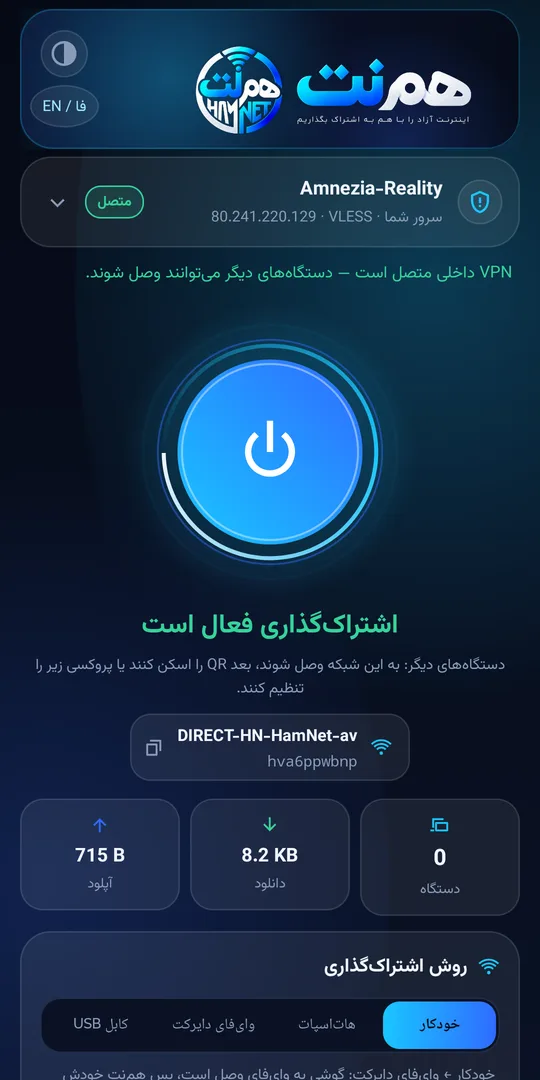
Paste your VPN link once (vless, vmess, trojan, shadowsocks, hysteria2, tuic or a WireGuard config). HamNet becomes the phone's VPN and shares that same connection with your laptop, iPhone, TV and any device next to you — through a single QR code.
Why HamNet
Built-in VPN
The Xray engine (the one behind v2rayNG) is inside the app. Paste your link; HamNet becomes the phone's VPN and needs no other app.
Share with one tap
Wi-Fi Direct while the phone is on Wi-Fi, HamNet's own hotspot on mobile data, your hotspot or USB tethering when you turn them on — it follows the phone by itself, nothing to pick.
QR onboarding
The other device scans to join the network and types one proxy address. That's it.
No accounts
No sign-up, no browsing history. Your link is stored only on your phone.
All the common protocols
VLESS + Reality, VMess, Trojan, Shadowsocks, Hysteria2, TUIC, WireGuard (link or .conf) and ws/grpc/http transports.
Transparent
The tunnel engine is the open-source Xray-core and HamNet has no middle server; traffic goes straight to your own server.
Three steps
Paste the link
Paste your VPN link or subscription into HamNet and tap Connect VPN. Android asks once to allow the VPN.
Turn sharing on
HamNet makes a Wi-Fi Direct network, or opens a hotspot when Wi-Fi is off, and shows a QR code. Switch Wi-Fi off or on and it moves along with you.
Connect the other device
Scan the first QR with the camera to join the network. An Android phone with HamNet: one tap, done. Everything else: the second QR opens the setup page — iPhone and Mac get a one-tap profile, Windows a PAC link.
Connecting other devices
HamNet runs on an Android phone, but anything that supports an HTTP proxy can connect to it. Take the address and port from HamNet's screen (for example 192.168.49.1:8181).
Android / tablet
- Easiest: install HamNet on that phone too. Join the host phone's Wi-Fi (scan the Wi-Fi QR with the camera), open HamNet and tap “Connect this phone”: every app on it — not just the browser — goes through the tunnel, no proxy settings anywhere.
- Without the app: Settings → Wi-Fi → tap the connected network → Edit → Proxy: Manual → enter the address and port shown in HamNet → Save. Only proxy-aware apps (browsers, most apps) use the tunnel this way.
iPhone / iPad
- Join HamNet's network (scan the first QR with the camera → Join Network).
- Fast way: scan the second QR to open the setup page in Safari → “Download profile” → Allow → Settings → Profile Downloaded → Install. Done; the proxy is set for this network.
- Manual way: Settings → Wi-Fi → the (i) button next to that network → HTTP Proxy → Configure Proxy → Manual → Server: HamNet's address, Port: 8181 → Save.
- iOS may say “No Internet” — ignore it; Safari works.
Mac
- Join HamNet's network.
- Fast way: open
http://ADDR:8181/in Safari (HamNet's address) → “Download profile” → System Settings → Profiles → Install. - Manual way: System Settings → Wi-Fi → Details… next to the network → Proxies → enable “Automatic proxy configuration” with
http://ADDR:8181/proxy.pac(or fill HTTP and HTTPS by hand). - If the Mac is also on another network with internet, put HamNet's network first in the service order.
Windows 10 / 11
- Join HamNet's network.
- Settings → Network & internet → Proxy.
- Fast way: under “Automatic proxy setup” turn on “Use setup script” and enter
http://ADDR:8181/proxy.pac. - Manual way: under “Manual proxy setup” turn on “Use a proxy server” → Address: HamNet's address, Port: 8181 → Save.
- Apps that ignore the system proxy (some games) need their own in-app proxy setting.
Linux
- Join HamNet's network.
- Settings → Network → Network Proxy → Manual.
- HTTP Proxy and HTTPS Proxy: HamNet's address, port 8181.
- In a terminal:
export http_proxy=http://ADDR:8181 https_proxy=http://ADDR:8181
Android TV / smart TV
- Connect the TV to HamNet's network (a hotspot is the easiest).
- Settings → Network & Internet → the connected network → Proxy settings → Manual.
- Host name: HamNet's address, Port: 8181.
- Apps that honour the system proxy (browser, many streaming apps) use the tunnel.
PlayStation 4 / 5
- Settings → Network → Set Up Internet Connection → HamNet's network.
- At the end of the wizard set Proxy Server to “Use”.
- Address: HamNet's address, Port: 8181.
- Note: online games are mostly UDP and do not pass through an HTTP proxy; the store and browser do.
Connect any device: step-by-step guides
Android / tablet
Share one Android phone's VPN with another Android phone or tablet using HamNet: one tap with the HamNet app, or just a Wi-Fi proxy setting. No root, free.
iPhone / iPad
Connect an iPhone or iPad to an Android phone's VPN without installing anything: HamNet's hotspot or Wi-Fi Direct plus a one-tap profile or the Wi-Fi HTTP Proxy setting.
Mac
Connect a MacBook or iMac to an Android phone's VPN without installing software: HamNet's hotspot plus a one-tap profile or a PAC file in network settings.
Windows 10 / 11
Connect a Windows 10 or 11 laptop to an Android phone's VPN through the phone's hotspot: no software, just one Proxy setting or a PAC address in Settings.
Linux
Connect Ubuntu, Fedora or any Linux distro to an Android phone's VPN through the phone's hotspot: the Network Proxy setting or http_proxy variables in a terminal.
Android TV / smart TV
Install nothing on the TV: connect it to the hotspot of an Android phone running HamNet and enter the proxy in the TV's network settings. YouTube and streaming apps go through the phone's VPN.
PlayStation 4 / 5
Connect a PS4 or PS5 to the hotspot of an Android phone running HamNet and enter the proxy in the console's internet setup. PlayStation Store and the browser go through the phone's VPN — no router, no extra subscription.
Frequently asked
Does the second device need a VPN or an app?
No. iPhone, Mac, Windows, Linux, TVs and consoles only need a proxy setting (or the one-tap profile/PAC). A second Android phone can install HamNet itself: one tap joins the host and every app on that phone goes through the tunnel.
Which apps go through the tunnel?
Anything that honours the system proxy: browsers, most messaging and streaming apps, app stores. UDP apps (some games, voice calls) may not.
Can I use my current VPN app instead?
Yes, an external-VPN mode exists, but Android then blocks incoming devices unless you exclude HamNet in that VPN app. With the built-in VPN the problem does not exist.
Is the other devices' traffic encrypted?
Between the device and the phone, HTTPS stays HTTPS; from the phone to your server it is inside the VPN tunnel. HamNet stores or sends nothing.
Is it free?
Yes. HamNet is free and ad-supported; no feature is behind a paywall.
Where do I get a server?
HamNet does not sell servers. Any link from your VPN provider or your own server (vless, vmess, trojan, ss, hysteria2, tuic) works.
Why does my antivirus warn?
Some antivirus apps flag any VPN app not installed from a store. Install the Google Play version, or compare the file with the SHA-256 on this page.
Download
Version 2.5.1 · Android 8+. Most modern phones need the arm64 build.
e7ba6fca49c9259c11c8e18d5844c5cfa084aa180889217bd0f047039098cd33 HamNet-2.5.1-arm64.apk
17a22d6427564869de54eb7b3b91727522adf764b554141a7b5f23d377b35f34 HamNet-2.5.1-armv7.apk
199cb829afd263a81aba45e246e326107418fb07327ed1c12a8589b59df5f2f6 HamNet-2.5.1-universal.apk
The Google Play version runs your link as a proxy for your other devices only (Play rules do not allow a built-in VPN on the phone itself). The full version with the built-in VPN is the APK on this page.